 Zebra Label Print Trait
Overview
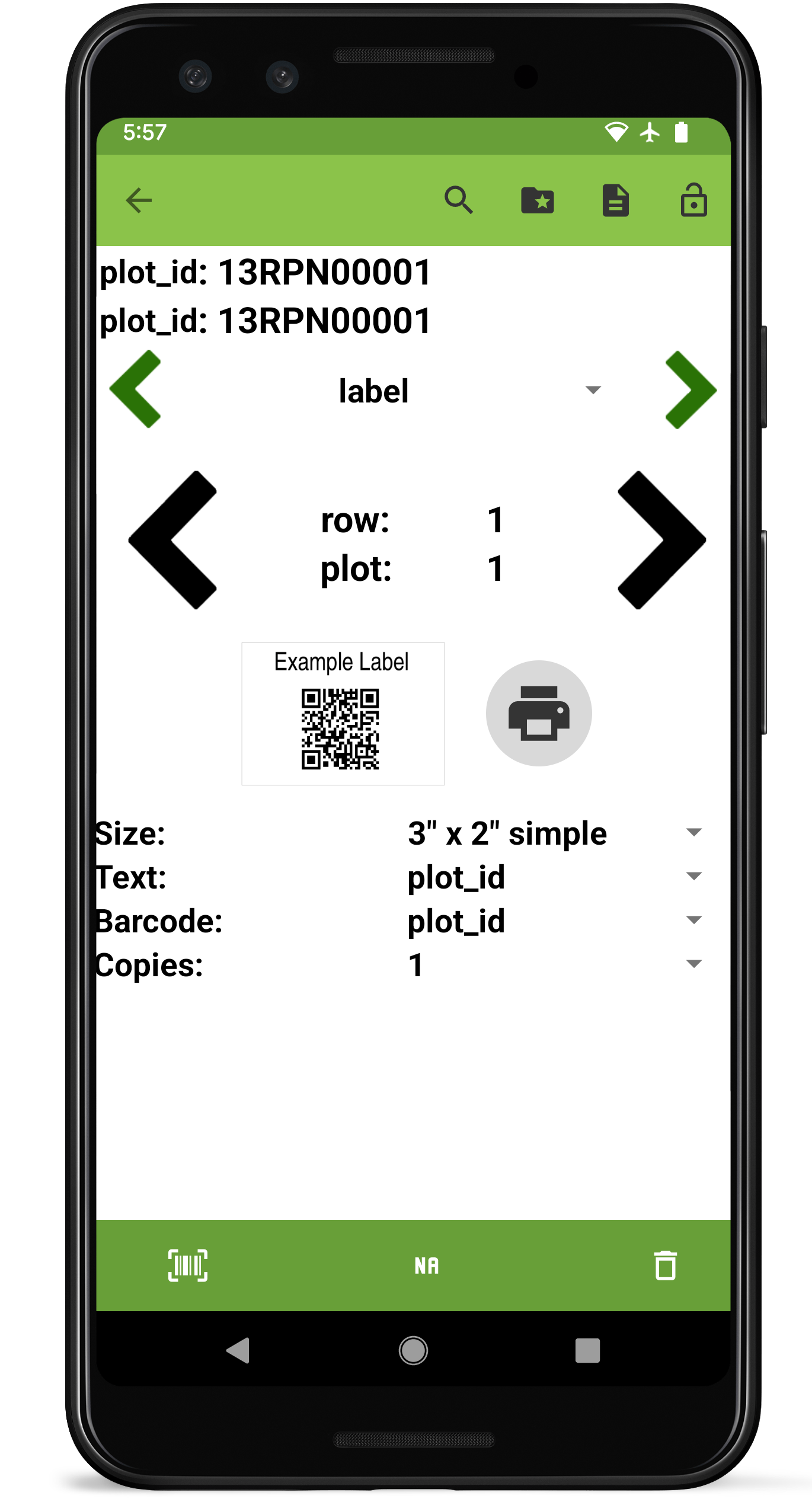
The Zebra Label print trait format is used to print labels from an external printer. The trait is designed to work with Zebra’s ZQ500 Series of ruggedized, mobile printers. It is created with a trait name and optional details.
To use this trait, the Zebra printer must first be paired via Bluetooth. Label size, barcode, specific data, and number of copies are selected and are saved as defaults. Pressing the print button will print the desired number of labels, each containing a barcode and ID for the specific entry, along with any additional selected data.
Creation

Collect layout
Troubleshooting
Issues with label printing are often caused by incompatible Zebra mobile printer configurations. To troubleshoot, install the [Zebra Printer Setup Utility](https://play.google.com/store/apps/details?id=com.zebra.printersetup) and try the following steps:
Download the latest firmware for the mobile printer model from the [Zebra support page](https://www.zebra.com/us/en/support-downloads/printers.html), unzip it, and send the unzipped .zpl file to the printer using the Available Files option in the Zebra Printer Setup Utility.
With the firmware updated, ensure the media type settings in Media Settings is correct for the type of label being used (usually MARK).
If the above steps don’t fix the problem, printing a configuration label using Printer Actions in the Zebra Printer Setup Utility can help with further troubleshooting.